
How to Connect Claude to Google Ads — Step-by-Step Guide (2026)
Category: Performance Marketing / Google Ads
Read Time: ~12 minutes
Published: June 2026
Summary: You can now connect Claude AI directly to your Google Ads account using the Google Ads MCP connector. Once set up, you can manage campaigns, pull performance reports, pause ad groups, check Quality Scores, and run keyword analysis — all through a simple chat message. This guide walks you through every step: adding the connector, authorizing your Google account, exploring the tools Claude unlocks, and running your first AI-powered ad command.
Table of Contents
- Introduction
- What Is MCP and Why Does It Matter for Google Ads?
- What You Need Before You Start
- How to Connect Claude to Google Ads — Step by Step
- Step 1 — Log In and Open Customize
- Step 2 — Navigate to Connectors
- Step 3 — Add the Google Ads MCP Connector
- Step 4 — Authorize with Your Google Account
- Step 5 — Review Permissions
- Step 6 — Confirm the Connection
- Step 7 — Explore the Available Tools
- Step 8 — Start Sending Prompts
- Real-World Use Cases
- Quick Reference Table
- Troubleshooting
- Final Thoughts
- FAQs
Introduction
Imagine checking your Google Ads ROAS for last week, pausing underperforming ad groups, and getting a keyword performance breakdown — without opening a single dashboard. Just by typing a message to Claude.
That is exactly what the Google Ads MCP connector makes possible.
Google Ads is powerful, but the interface is dense. Between campaigns, ad groups, keywords, bidding strategies, extensions, and conversion tracking, it takes real time just to find the number you need — let alone act on it. Connecting Claude to Google Ads changes that. You ask, Claude pulls the data and takes the action.
This guide is for digital marketers, PPC specialists, agency professionals, and business owners who run Google Ads and want to start using AI to speed things up.
What Is MCP and Why Does It Matter for Google Ads? {#what-is-mcp}
MCP stands for Model Context Protocol — an open standard that lets AI models like Claude connect directly to external platforms and services. Think of it as a universal adapter between Claude’s intelligence and the tools your business already runs on.
Without MCP, Claude can only talk. It can write ad copy, suggest bidding strategies, explain match types — but it cannot actually see your account or touch your campaigns.
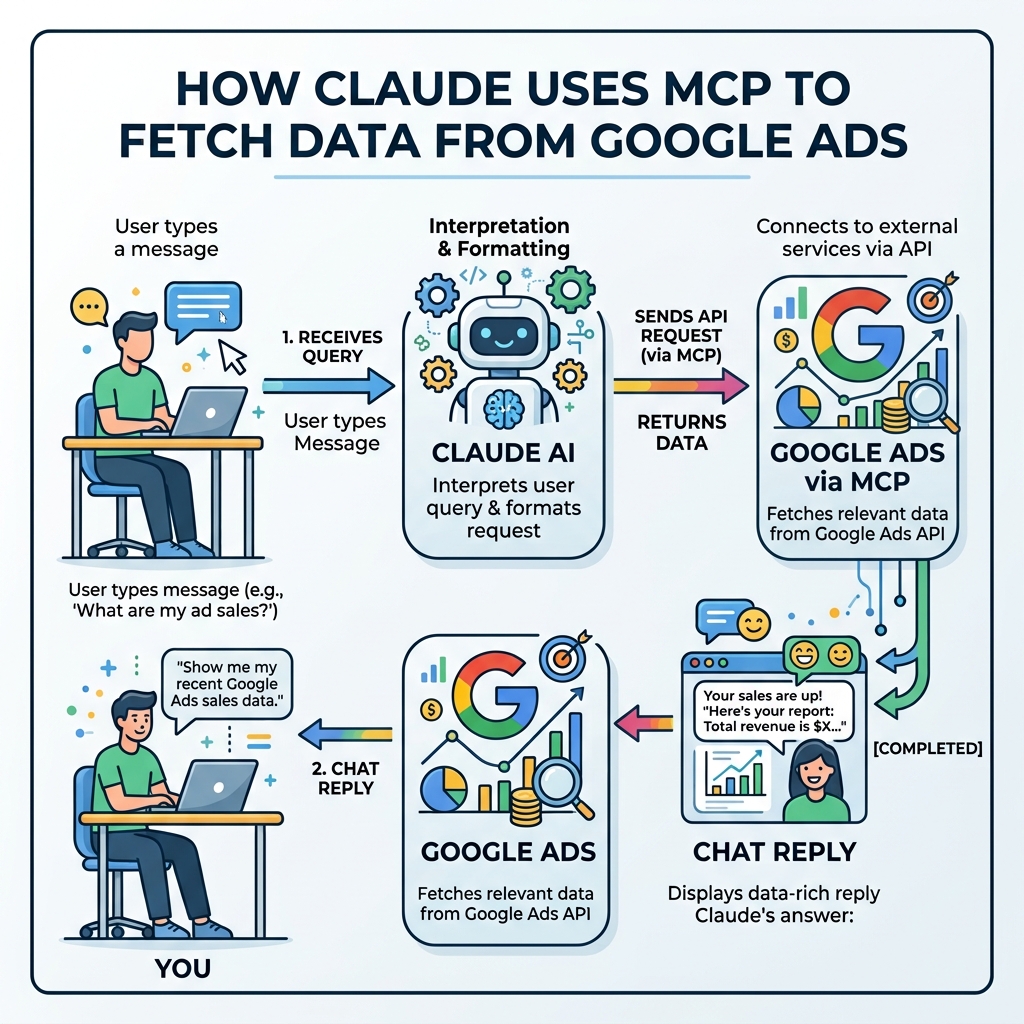
With the Google Ads MCP connector, Claude can:
- Read your campaign data, ad group stats, keyword performance, and conversion metrics
- Act by pausing campaigns, updating bids, or creating new ad groups
- Report by generating performance summaries in plain English
- Analyze trends, flag anomalies, and benchmark against targets
All through natural language. No API keys to manage. No exports. No extra tools.
What You Need Before You Start {#prerequisites}
Before connecting, make sure you have the following ready:
- ✅ A Claude Pro or Team plan account at claude.ai
- ✅ A Google Ads account — active with at least one campaign
- ✅ Admin or Standard access to the Google Ads account(s) you want to manage
- ✅ A Google account that is linked to that Ads account
- ✅ A modern browser — Google Chrome works best
If you are an agency managing multiple client accounts, you will need a Google Ads Manager Account (MCC) with appropriate permissions.
How to Connect Claude to Google Ads
Step 1 — Log In and Open Customize
Go to claude.ai and sign in to your Claude Pro or Team account.
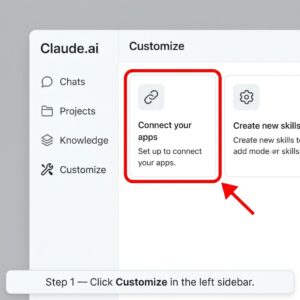
On the left sidebar, click “Customize”.
You will land on the Customize page with two main options:
- Connect your apps — link Claude to external tools
- Create new skills — teach Claude your workflows
Click “Connect your apps” or navigate directly to “Connectors” in the left panel.
Step 2 — Navigate to Connectors
In the sub-menu on the left, click “Connectors”.
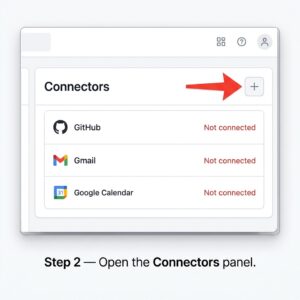
You will see a list of available integrations. By default, you might already see options like GitHub, Gmail, or Google Calendar listed as “Not connected.”
Scroll to the top of the panel and look for the option to add a new connector.
Step 3 — Add the Google Ads MCP Connector
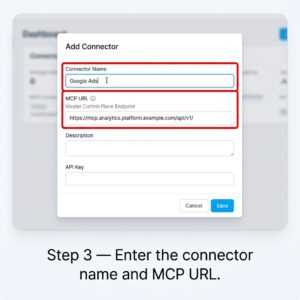
At the top of the Connectors panel, click the “+” icon to add a new custom connector.
A form will appear with two fields:
| Field | What to Enter |
|---|---|
| Name | Google Ads |
| MCP URL | https://mcp.google.com/ads (use the official URL when published by Google) |
Note: Google’s official MCP server URL may vary. At the time of writing, Google has been rolling out MCP support progressively. If the above URL does not work, check Google Ads API documentation or Claude’s Connectors marketplace for the verified URL.
Once you have filled in both fields, click “Save” or “Add” to proceed.
Step 4 — Authorize with Your Google Account
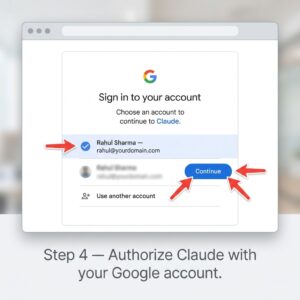
After saving, Claude will redirect you to a Google OAuth authorization page.
A screen will appear asking you to confirm which Google account you want to use. It will show your Google profile name and email — for example, “yourname@gmail.com“.
- If this is the correct account linked to your Google Ads: click “Continue”
- If you need a different account: click “Use another account”
You will then be asked to grant Claude access to your Google Ads data.
Step 5 — Review Permissions
Google will display the list of permissions Claude is requesting. Read through them before clicking Allow.
Here is what you can typically expect:
| Permission | What It Allows |
|---|---|
| View your Google Ads data | Read campaigns, ad groups, keywords, and performance |
| Manage your Google Ads campaigns | Create, edit, pause, or remove campaigns |
| Access conversion tracking data | View and analyze conversion metrics |
| View account billing information | Read budget and spend summaries |
Important: Claude will be able to make changes to your Google Ads account. Start by using read-only commands while you get comfortable with the integration, and always double-check before confirming actions that affect budget or campaign status.
Once you are satisfied, click “Allow” to grant access.
Step 6 — Confirm the Connection in Claude
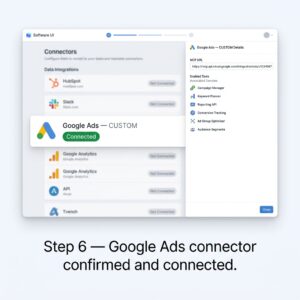
Go back to Claude’s Connectors panel at claude.ai/customize/connectors.
You should now see “Google Ads — CUSTOM” listed under your connectors, marked as Connected.
Click on it to see the right-side panel, which will show:
- The MCP URL you entered
- A full list of tools Claude can now use within your Google Ads account
Step 7 — Explore the Available Tools
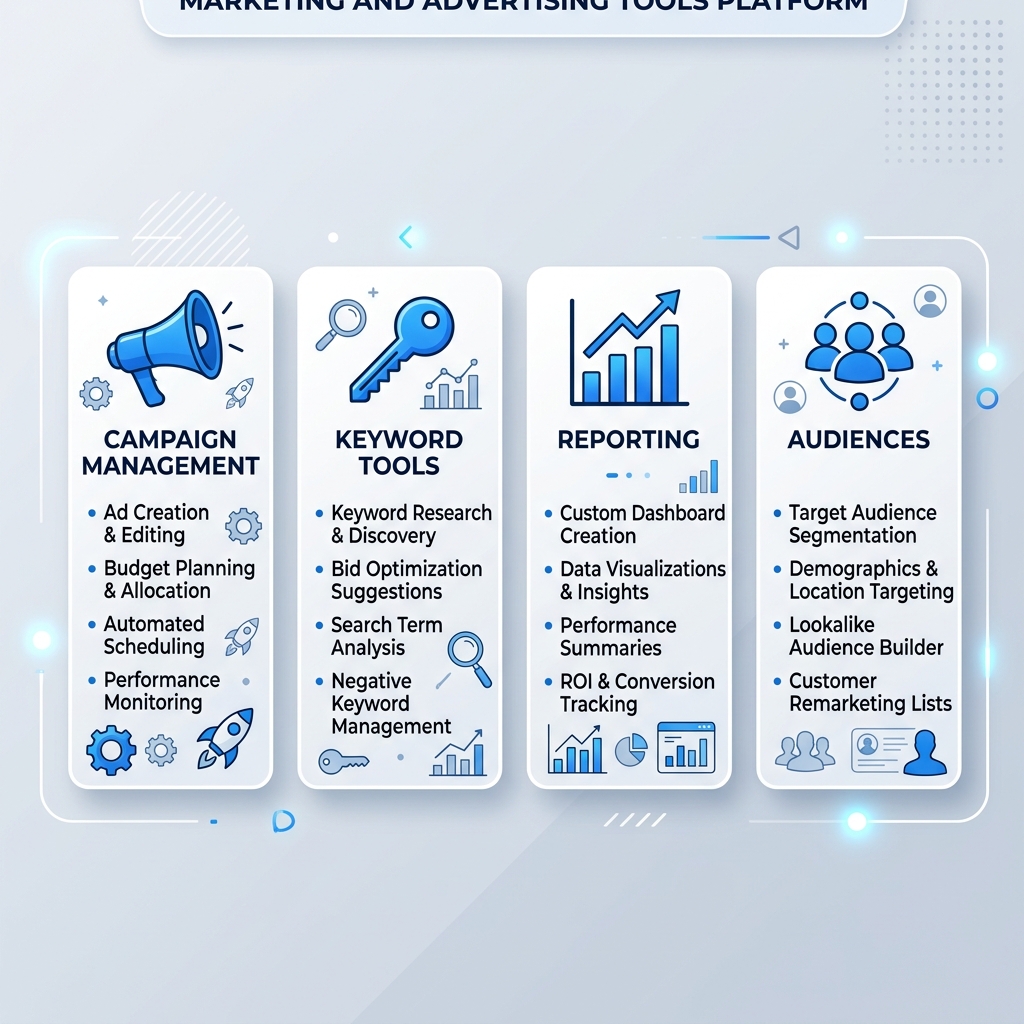
Once connected, Claude gains access to a range of Google Ads management tools. Here is a snapshot of what becomes available:
Campaign Management
- get_campaigns — List all campaigns with status, budget, and type
- pause_campaign — Pause a specific campaign by name or ID
- create_campaign — Launch a new campaign from scratch
- update_campaign_budget — Adjust daily or lifetime budget
Ad Group & Keyword Management
- get_ad_groups — List all ad groups within a campaign
- get_keywords — View keywords, match types, and Quality Scores
- add_keyword — Add new keywords to an ad group
- pause_keyword — Pause a specific keyword
Performance & Reporting
- get_performance_report — Fetch clicks, impressions, CTR, CPC, and conversions
- get_roas_summary — View Return on Ad Spend by campaign or account
- get_search_terms_report — Analyze what users actually searched for
- get_conversion_data — View goal completions and conversion values
Audience & Creative
- get_ad_creatives — List all active and paused ad creatives
- get_audience_lists — View remarketing and customer match lists
Step 8 — Start Sending Prompts
Now go to the main Claude chat at claude.ai/new and start giving commands.
Here are some prompts to try right away:
"What Google Ads accounts do you have access to?"

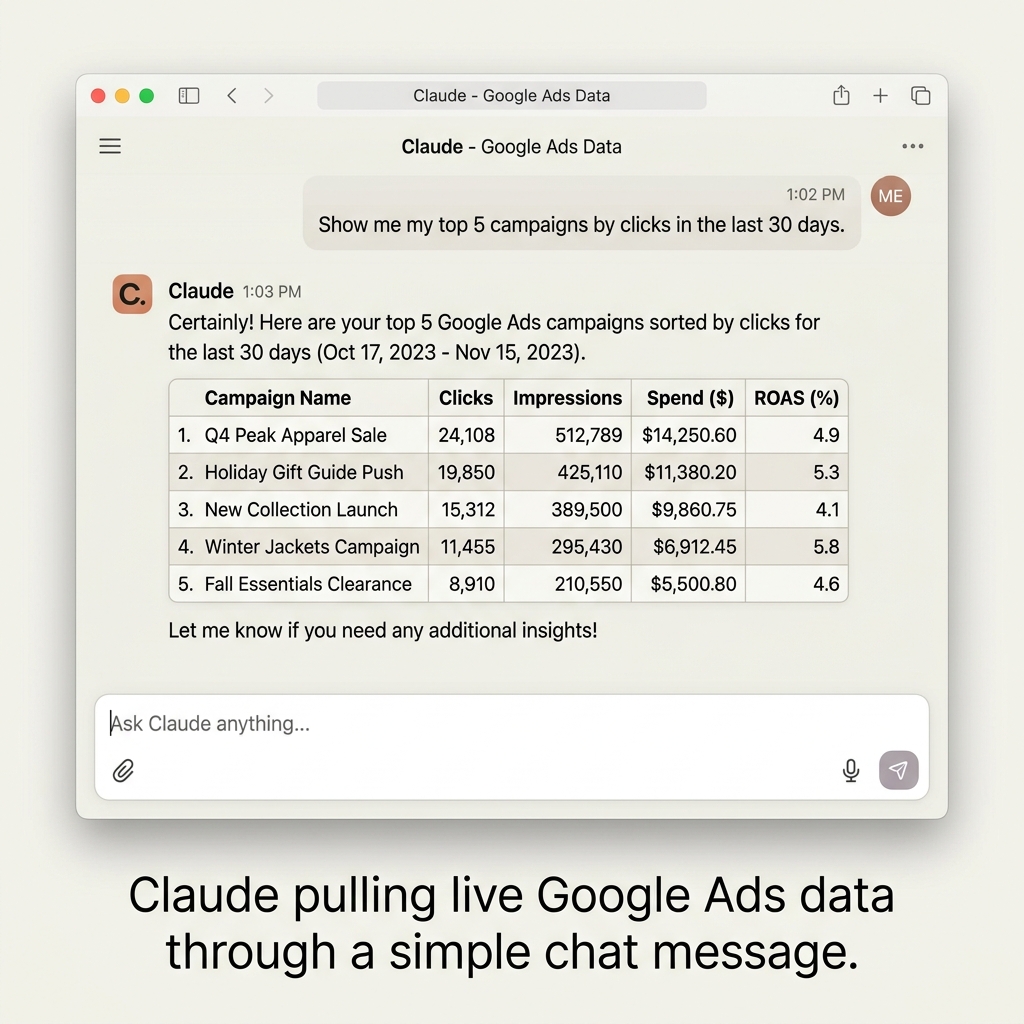
"Show me my top 5 campaigns by clicks in the last 30 days."

"Which ad groups have a Quality Score below 5?"

"Pause all keywords in [Campaign Name] with a CTR below 1%."

"Give me a performance report for last week — clicks, spend, and ROAS."

"What search terms triggered my ads this month? Any irrelevant ones I should add as negatives?"

"Create a summary of my Google Ads account health."
Claude will process each request using the connected Google Ads tools and respond directly in the chat.
Real-World Use Cases
Here is what marketers are actually using this integration for:
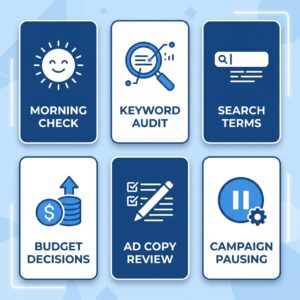
1. Morning Account Checks — Without Opening Ads Manager
Start your day by asking Claude: “Give me a quick summary of yesterday’s Google Ads performance.” Get your key numbers in seconds, formatted exactly the way you want.
2. Keyword Audits on Demand
Ask Claude to pull all keywords with a Quality Score below 6, or keywords that have spent more than ₹500 with zero conversions. Decisions that used to take 20 minutes of filtering now take one message.
3. Search Term Analysis and Negative Keyword Mining
“What search terms triggered my ads this week that are not relevant to my business?” Claude can analyze the search terms report and suggest negative keywords — one of the most tedious tasks in Google Ads management.
4. Budget Reallocation Across Campaigns
Running multiple campaigns? Ask Claude to compare spend versus ROAS across all of them, and it will tell you which campaigns are overspending relative to results — so you know where to shift budget.
5. Ad Copy Review
With Claude’s language abilities plus live ad data, you can ask it to review your active headlines, flag duplicates, suggest improvements, and even draft new responsive search ad copy — all in one conversation.
Quick Reference Table {#reference}
| Item | Detail |
|---|---|
| Connector Name | Google Ads |
| Where to Add | claude.ai/customize/connectors |
| Auth Method | Google OAuth |
| Required Plan | Claude Pro or Team |
| Access Scope | Read + Write (campaign management) |
| Best For | PPC managers, agency owners, in-house marketers |
Troubleshooting
Connector added but showing “Not connected”?
- Refresh the Connectors page
- Try removing and re-adding the connector
- Make sure you completed the OAuth authorization flow fully
Google OAuth popup blocked?
- Disable your browser’s popup blocker temporarily
- Try the connection in an Incognito window
Claude says it cannot access your Google Ads account?
- Verify that the Google account you authorized has Standard or Admin access to the Ads account
- Check that the Ads account is active — suspended accounts may not return data
Getting permission errors on certain tools?
- Some tools may require Manager Account (MCC) level access
- Re-authorize and ensure you clicked “Allow” on all requested permissions
Tool permissions showing “Needs approval” in Claude?
- Go to the connector settings and change frequently-used tools from “Needs approval” to “Always allow”
Final Thoughts
Managing Google Ads manually takes time that most marketers do not have. Between checking performance, mining search terms, reviewing Quality Scores, and adjusting bids, the operational side of PPC can eat up hours that are better spent on strategy.
Connecting Claude to Google Ads through MCP is one of those genuinely useful integrations — not hype, not a novelty, but a real workflow change. The combination of Claude’s language understanding and direct access to your live ad data means you can get answers and take actions in the time it used to take just to load the Ads Manager.
Start small. Run a few read-only queries first. Get comfortable with what Claude can see and do. Then start using it for the repetitive stuff — the audits, the reports, the search term reviews — and free up your brain for the decisions that actually require one.
FAQs
1. Is it safe to connect Claude to my Google Ads account?
Yes. The connection uses Google’s standard OAuth system — the same authorization method used by tools like HubSpot, Zapier, and other Google Ads integrations. You can revoke access at any time from your Google Account security settings or from Claude’s Connectors panel.
2. Can Claude accidentally spend my budget?
Claude can make changes to your campaigns if you ask it to. It will not take any action you did not request. That said, always review suggested changes before asking Claude to apply them, especially anything involving bids or budgets. Start with read-only commands to build confidence.
3. Does this work with Google Shopping campaigns?
Shopping campaigns are managed through Google Ads, so yes — the connector gives Claude visibility into Shopping campaigns, product groups, and feed performance, depending on the tools available in the MCP server.
4. Can I use this with a Google Ads Manager Account (MCC)?
If your authorized Google account has MCC access, Claude should be able to see all linked accounts. You can then specify which account you want data from in your prompts.
5. Do I need a developer or technical background to set this up?
No. The entire setup is done through Claude’s Connectors UI and Google’s OAuth flow. No code, no API keys, no developer tools needed.
6. Is the Google Ads MCP connector free?
The connector itself is included with your Claude Pro or Team plan. Your Google Ads spend continues to be billed through Google as usual.
Have a question or something did not work? Drop it in the comments below.